
To set a music sleep timer on Android, start playing audio, open the player’s menu or playback settings, select Sleep Timer, choose a duration such as 15, 30, or 60 minutes, and confirm it. The exact steps vary by app because Android does not provide one universal sleep timer for every music and podcast player.
If your current player has no timer, HushFlow includes a sleep timer for audio playing in HushFlow. NextFlow Apps develops the app; it does not stop audio in unrelated players.
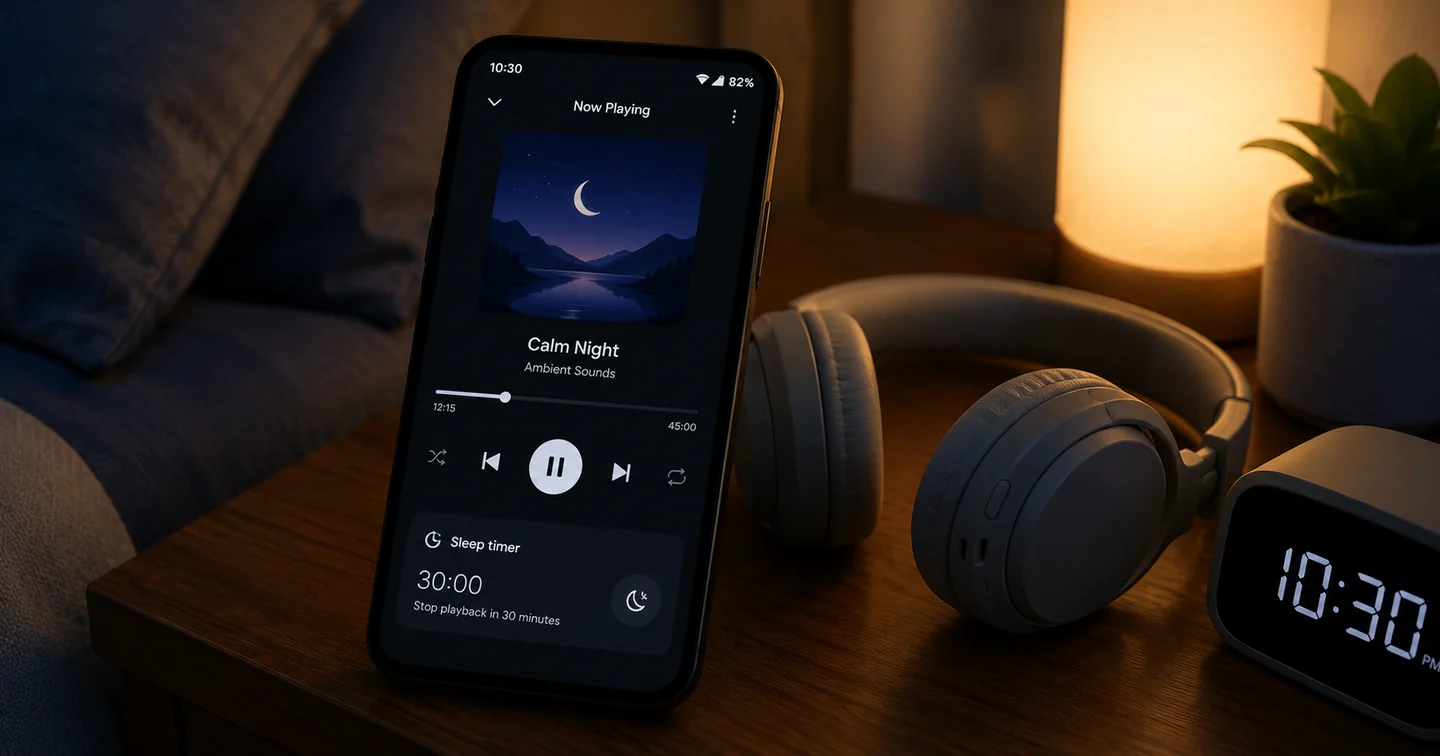
How to Set a Timer to Stop Music on Android
Follow these general steps to set a sleep timer in your music or podcast app:
- Open the music, podcast, or audio app you want to use.
- Start playing the audio you want to listen to.
- Open the playback menu, three‑dot menu, or settings – often found in the full player view.
- Select Sleep Timer, Timer, Stop after, or a similar option.
- Choose a duration – for example, 15, 30, 45, or 60 minutes.
- Select end‑of‑track or end‑of‑episode where available.
- Confirm the timer – many apps show the remaining time beside a clock icon.
- Lock the phone and verify that playback stops at the chosen time.
What Is a Music Sleep Timer?
A music sleep timer is a playback control that automatically stops or pauses audio after a selected amount of time. It is designed for users who want to fall asleep to music, podcasts, audiobooks, or ambient sounds without the audio continuing all night.
- It prevents playback from running through the night.
- Some apps offer end‑of‑track or end‑of‑episode options.
- It may work while the screen is locked if the audio app supports background playback.
Can Android Automatically Stop Music?
Android does not provide one guaranteed, universal sleep timer for every audio app. However, many music and podcast apps include their own built‑in sleep timer.
- A built‑in player timer is usually the most reliable method.
- Some phone automation tools may stop or pause media, but support varies.
- Clock‑app workarounds differ by manufacturer and Android version.
How to Stop Music After 30 Minutes
If your app has a sleep timer, stopping music after 30 minutes is straightforward:
- Start playback.
- Open the sleep timer.
- Choose 30 minutes.
- Confirm the timer.
- Lock the screen if desired – the timer should usually continue counting while the phone is locked.
How to Stop Music at the End of a Track
Some apps offer an end‑of‑track option. This is useful when you want the current song or audio track to finish naturally before stopping. Not every app provides this option.
How to Stop a Podcast at the End of an Episode
Some podcast players offer an end‑of‑episode option. This prevents the next episode from starting automatically. Look for this option inside the timer menu or playback settings.
Does a Sleep Timer Work With the Screen Off?
Usually yes, when the app supports background playback. The timer belongs to the audio app and can continue while the phone is locked. However, battery restrictions may interrupt playback before the timer ends. Notification and background permissions may be necessary, and manufacturer settings can affect reliability.
For more detail on keeping audio playing with the screen off, see our guide: how to play audio with the screen off on Android.
What If My Music App Has No Sleep Timer?
If your app does not have a built‑in sleep timer, try these options:
- Use a player with a built‑in sleep timer – several dedicated music, podcast, and ambient‑sound apps include this feature.
- Create a short playlist or limited queue that ends naturally.
- Disable autoplay so playback stops after the current queue.
- Use an end‑of‑track option if available.
- Use a trusted third‑party timer app carefully – review its permissions and privacy policy first.
- Use device automation only when supported – be aware that setup and compatibility vary.
Comparison of Sleep Timer Methods
| Method | Works with screen off? | Stops one app or all audio? | Best use | Limitations |
|---|---|---|---|---|
| Built‑in app sleep timer | Usually works | Usually controls the current app | Music, podcasts, ambient audio | Availability depends on the app |
| End‑of‑track timer | Usually works | Stops after the current track | Natural stopping point | Not offered by every app |
| End‑of‑episode timer | Usually works | Stops after the current episode | Podcast listening | Depends on the podcast player |
| Short playlist or queue | Usually works | Stops when the queue ends | When no sleep timer exists | Autoplay may continue unless disabled |
| Device automation | Device‑dependent | May control media more broadly | Advanced users | Setup and compatibility vary |
| Third‑party sleep‑timer app | Often works | Behavior varies | When the player lacks a timer | Requires additional permissions and careful app selection |
What Sleep‑Timer Duration Should You Use?
Here are some practical starting points:
- 10–15 minutes – short relaxation
- 20–30 minutes – falling asleep
- 45–60 minutes – longer podcasts or ambient audio
- End‑of‑track – for music
- End‑of‑episode – for podcasts
These are practical starting points, not medical recommendations. Adjust based on your own sleep routine.
Why Did My Music Sleep Timer Not Work?
Test before relying on it: choose the shortest available timer, start supported audio in that player, and lock the phone. If playback stops immediately, troubleshoot background playback. If it continues beyond the timer, check that the countdown was confirmed and that autoplay or another app did not start a new queue.
Here are common causes and how to fix them:
- Timer was not confirmed: Some apps require a confirm button after selecting a duration.
- App was force‑closed: Swiping the app away from recent apps can stop background activity.
- Battery optimization stopped the app: Aggressive power management may prevent background timers from firing. Check battery settings.
- Autoplay started another track: Disable autoplay if the timer is set for a single track or episode.
- Timer was set to end‑of‑track instead of a duration: Ensure the correct mode is selected.
- App update changed the menu: The timer may have moved – check the app’s settings or help section.
- Background playback is restricted: Allow background activity for the app in Android settings.
- Notification permission is disabled: Media notifications may be required for the timer to work.
- Third‑party timer lacks necessary permission: Review its permissions and privacy policy.
- Bluetooth or casting behavior changed playback: Test without Bluetooth or casting.
- The app does not support the selected timer mode: Check the app’s documentation.
Troubleshooting Checklist
- Confirm the timer is active – check for a visible timer indicator.
- Check the remaining timer duration.
- Disable autoplay if needed.
- Allow background playback in Android settings.
- Allow app notifications.
- Remove aggressive battery restrictions.
- Update the app.
- Test with the phone locked.
- Test without Bluetooth or casting.
- Restart the app.
- Try a built‑in timer instead of a third‑party workaround.
How HushFlow Supports Bedtime Listening
If you regularly listen to audio before sleeping and want a reliable sleep timer, HushFlow is designed with bedtime listening in mind.
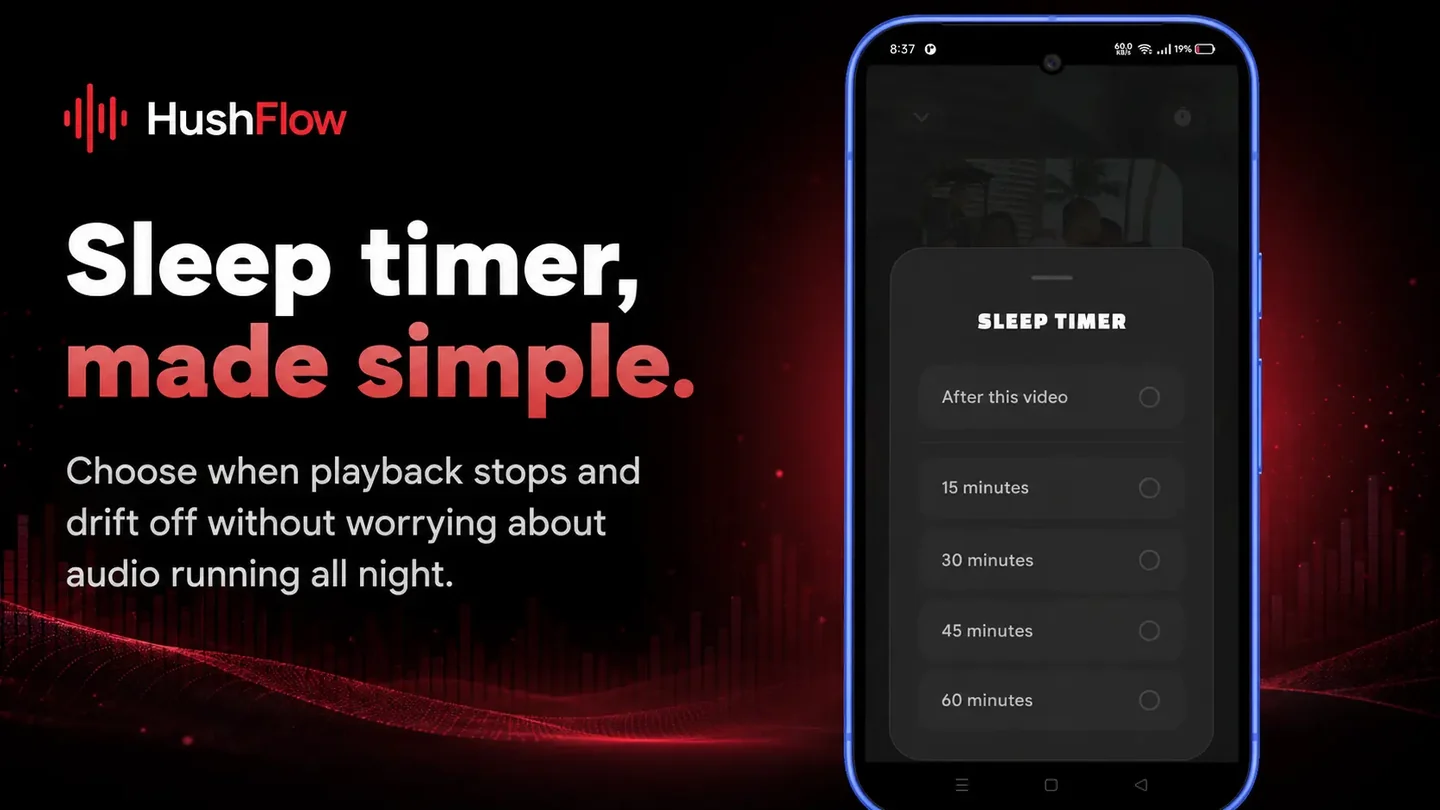
HushFlow is an Android music and podcast player built for flexible background listening. It includes a built‑in sleep timer that lets you choose a duration, then automatically stops playback when the timer expires.
Key bedtime features:
- Sleep timer — set a duration in minutes. When the timer runs out, playback stops automatically.
- Screen‑off playback — audio continues after you lock the screen, so you can fall asleep without keeping the phone unlocked.
- Notification controls — pause, adjust, or stop audio from the notification panel without unlocking the phone.
- Lock‑screen controls — media controls are available on the lock screen for supported Android devices.
- Queue management — organise your listening queue so you do not need to keep unlocking the phone.
- Audio discovery — browse categories such as Focus, Sleep, Mood, Pop, and Jazz to find suitable bedtime audio.
- Audio Lab — customise sound with a 10‑band equalizer, bass boost, and presets.
HushFlow can continue supported audio playback with the screen off and stop it after a selected sleep‑timer period, provided Android allows the app to remain active in the background. It is not designed to bypass other apps, download protected media, or remove third‑party advertisements.
Related Articles
- How to play audio with the screen off on Android – fix Android background playback
- HushFlow for Android – a music and podcast player with a sleep timer
- More articles
Frequently asked questions
How do I set a timer to stop music on Android?
Open your music or podcast app, start playback, look for a sleep timer option in the player menu, choose a duration, and confirm it. The exact steps depend on your app.
Can I stop music automatically after 30 minutes?
Yes, if your audio app includes a sleep timer. Start playback, open the sleep timer settings, choose 30 minutes, and confirm. The timer will stop playback after that period.
Does a sleep timer work when the screen is off?
Generally yes, when the app supports background playback. The timer runs in the background and stops playback even while the screen is locked.
Can a sleep timer stop podcasts?
Yes. Some podcast apps offer duration-based timers or end-of-episode options. Check your app's playback menu or settings.
Does Android have a universal music sleep timer?
No. Android does not provide one built-in timer that works for every audio app. Sleep timers are usually included inside individual music and podcast apps.
What happens if my music app has no sleep timer?
You can use a shorter playlist, disable autoplay, use a dedicated audio app with a timer, or, with caution, explore third-party timer apps. Check permissions and privacy policies before using third-party tools.
Why did my timer not stop the music?
Common reasons include the timer not being confirmed, battery restrictions, autoplay starting a new track, or the app being force-closed. Review the troubleshooting section for specific fixes.
Does HushFlow include a sleep timer?
Yes. HushFlow includes a built-in sleep timer that stops playback after a selected duration. It also supports screen-off playback and lock-screen controls.
Final Thoughts
A music sleep timer is a practical feature for anyone who enjoys falling asleep to audio. It stops playback automatically, saves battery, and removes the worry of audio playing all night.
Remember that the timer is usually provided by the audio app itself, not by Android system settings. Start by locating the timer in your preferred app, set a short test duration, and confirm that it works with screen-off playback.
One action to try today: Open your audio app, start permitted audio, set a 5‑minute test timer, lock the screen, and confirm that playback stops correctly. Once it works, you can use a longer timer for bedtime.
If you have ongoing sleep difficulties, consider speaking with a qualified professional. A sleep timer is a useful tool, but it is not a treatment for sleep disorders.