
To keep music playing when your Android screen turns off, start audio in an app that supports background playback, then lock the phone. If it stops, check that app’s background battery settings first. A powered-off phone cannot play audio.
Prefer a player built around background audio? Explore HushFlow’s screen-off playback and sleep timer. NextFlow Apps develops HushFlow; the troubleshooting steps below also apply to other supported players.
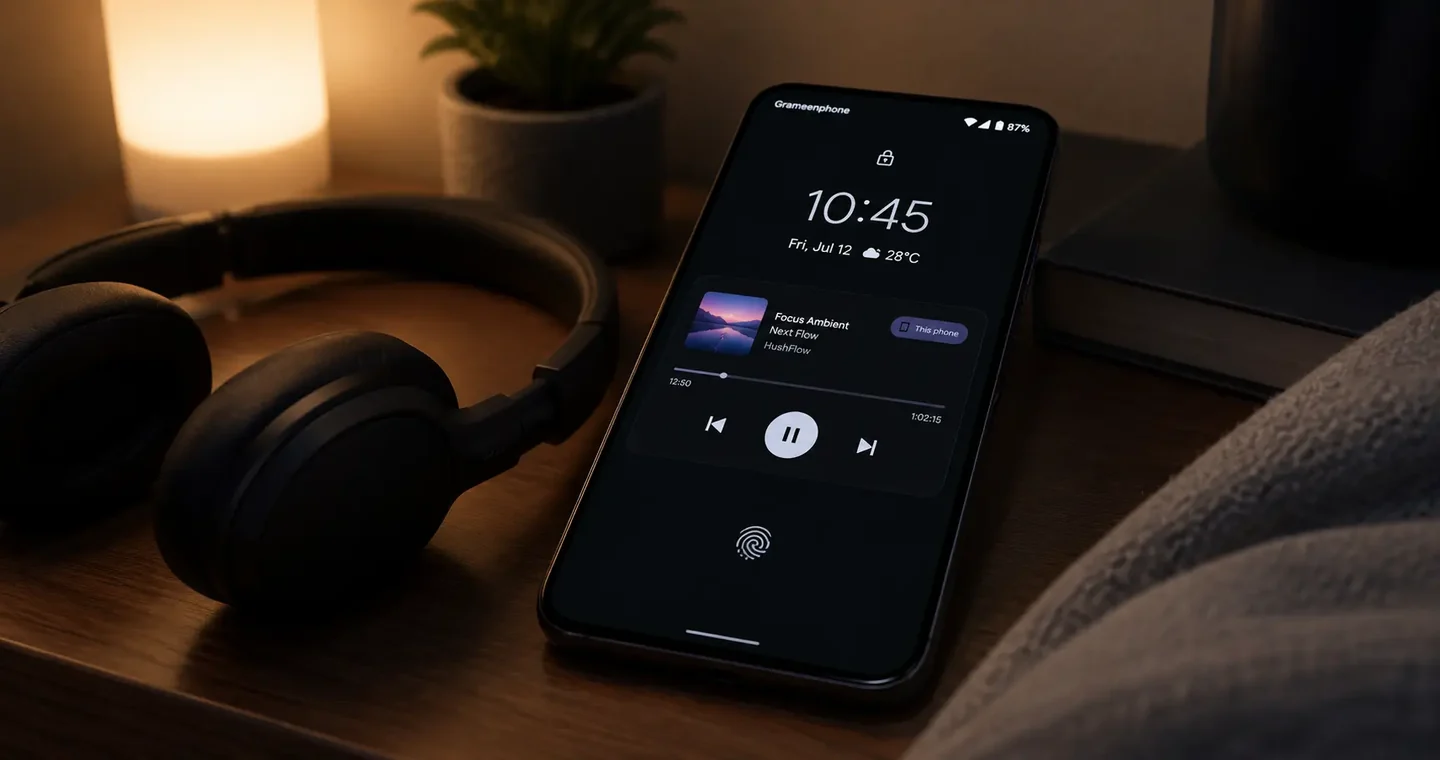
Screen Off vs. Phone Completely Powered Off
There is an important difference between screen off and phone completely powered off:
- Screen off / locked phone: The phone is still on. Apps can continue running in the background, and audio playback is supported if the app and Android settings allow it. This is what “screen‑off listening” means.
- Phone completely powered off: The device is shut down. No Android app can run, and no audio can play. There is no way to listen to music when the phone is fully turned off.
How to Play Music With the Screen Off on Android
- Open an audio app that supports background playback.
- Start playing music, a podcast, or another supported audio source.
- Confirm that media controls appear in the notification panel.
- Lock the phone.
- Use notification or lock-screen controls.
- Change battery and background settings if playback stops.
How Background Playback Works
- The app continues running as a background media service.
- Android displays media controls through notifications and the lock screen.
- Battery-saving systems may stop apps that are not allowed to run in the background.
- Not every browser, video source, or media app supports screen-off playback.
How to Keep Music Playing When Your Phone Is Locked
To keep music playing when the screen is off, you need:
- An audio app that supports background playback
- Background activity permission enabled
- A visible media notification
- Notification and lock-screen settings checked if media controls are missing
- Battery optimization exemption for the audio app (if needed)
- A stable internet connection for streaming
- A working Bluetooth connection (if using wireless headphones)
Why Does Music Stop When I Lock My Phone?
- Battery optimization: The system may stop background apps to save power. Solution: set the app to "Unrestricted" or "Allow background activity."
- Restricted background activity: The app may be restricted from running in the background. Solution: allow background activity in app settings.
- Missing media controls: Check the player's notification and lock-screen settings. Missing controls do not necessarily mean the audio app cannot run in the background.
- Aggressive manufacturer battery management: Some brands (Samsung, Xiaomi, etc.) have additional battery-saving features. Solution: adjust manufacturer-specific settings.
- Force-stopped app: If you force-stop the app, it won't play in the background. Solution: restart the app.
- Mobile data restriction: The app may be restricted from using mobile data in the background. Solution: allow background data.
- Data Saver restriction: Data Saver may limit background data. Solution: allow the app to use data in the background.
- Unsupported media source: Some websites or media players don't support background playback. Solution: use a dedicated audio app.
- Browser limitation: Browsers often stop audio when the screen is off. Solution: use an app designed for audio.
- App crash or playback bug: The app may have a bug. Solution: update the app.
- Bluetooth disconnection: Audio may pause if Bluetooth disconnects. Solution: reconnect.
- Low-memory app termination: The system may terminate apps to free up memory. Solution: close other apps.
How to Allow Background Music on Different Android Phones
Menu names can vary by Android version and manufacturer skin. Below are common paths for popular brands.
Samsung Galaxy: music stops when the screen locks
- Open Settings.
- Go to Apps.
- Select the audio app.
- Tap Battery.
- Select Unrestricted.
Search Settings for Sleeping apps. Remove the player from both Sleeping apps and Deep sleeping apps if it appears there. On supported One UI versions, you can also add it to Never sleeping apps. Change only the affected player’s settings, then test again; unrestricted background use can increase battery consumption.
Samsung documents these checks in its guide to audio stopping on Galaxy devices. Names vary across One UI versions.
Xiaomi and Redmi
- Open Settings.
- Go to Apps.
- Select Manage apps.
- Choose the audio app.
- Open Battery saver.
- Select No restrictions.
Also enable Autostart where available.
Note: Menus differ between MIUI and HyperOS.
Google Pixel
- Open Settings.
- Go to Apps.
- Select the audio app.
- Open App battery usage.
- Allow background usage.
Google explains the Pixel background battery controls. Keep normal optimization enabled for other apps; wording varies by Android version.
Motorola
Motorola devices often use near‑stock Android with a few Moto additions:
- Open Settings.
- Go to Apps & notifications.
- Select the audio app.
- Tap Battery.
- Choose “Unrestricted” or “Allow background activity.”
Some Moto models also have “Moto Actions” or “Battery Saver” that can restrict background apps; ensure the audio app is exempted there if needed.
OnePlus
Allow background activity for the audio app in Settings → Apps → select the app → Battery → Allow background activity.
Oppo and Realme
Allow background activity, disable battery optimization, and enable automatic launch for the audio app in Settings.
Other brands (Honor, Nothing, Poco, etc.)
Most Android skins have similar settings: go to Settings → Apps → select your audio app → Battery or Background restriction → choose “Unrestricted,” “Allow background activity,” or “No restrictions.” Additionally, check for manufacturer‑specific battery managers or “Auto‑start” permissions.
Why Are Lock-Screen Music Controls Missing?
If lock-screen controls are missing, check:
- Review the player's notification and media-control settings; permission requirements vary by Android version.
- Media notifications are not hidden.
- Lock-screen notifications are allowed.
- The app is using a supported media session.
- Battery restrictions are not stopping the app.
- Manufacturer-specific lock-screen settings are configured.
Practical steps:
- Review notification visibility and media-control settings for the app.
- Allow lock-screen notifications.
- Start playback before locking the phone.
- Remove battery restrictions.
- Restart the app.
- Restart the device if necessary.
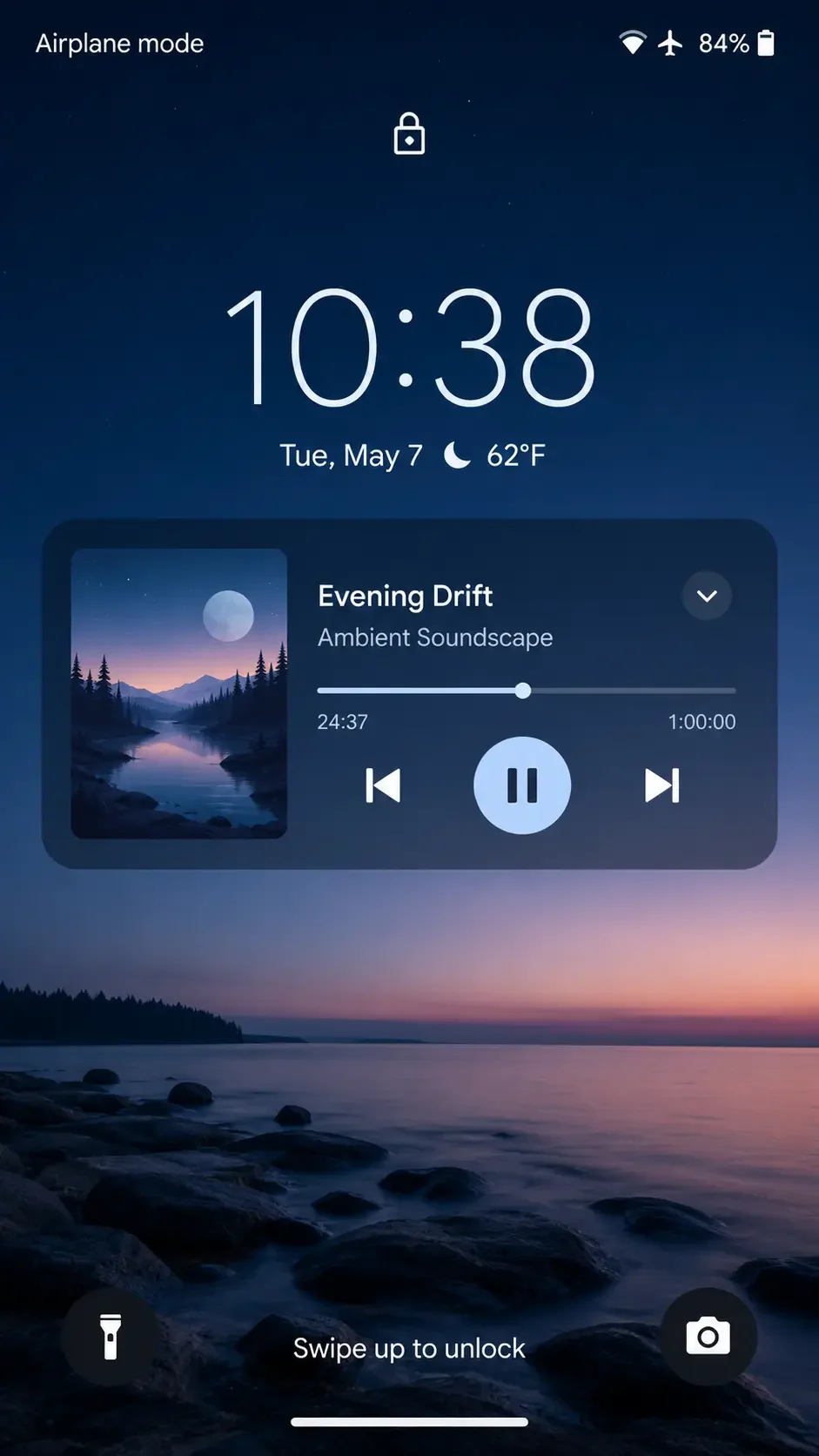
Android 13 and later exempt media-session notifications from the general notification permission requirement. Missing notification permission alone does not prove that background playback is blocked. See Android's media-session exemption. Device and player settings can still affect which controls appear.
Does Playing Music With the Screen Off Save Battery?
Turning off the display usually reduces battery consumption compared to keeping the screen on. However:
- Streaming still uses Wi-Fi or mobile data.
- Bluetooth still consumes power.
- High volume and audio processing can increase consumption.
- Downloaded audio may use less network power than streaming.
- Battery savings vary by device, app, connection, and battery condition.
There are no fixed percentage savings — it depends on your specific usage.
Streaming vs. Downloaded Audio for Screen‑Off Playback
When your screen is off, both streaming and downloaded audio can work, but they have different requirements:
- Streaming: Requires a stable internet connection (Wi‑Fi or mobile data). If the connection drops, playback may pause. Streaming also uses more battery due to network activity.
- Downloaded / offline audio: Plays directly from device storage. It works without an internet connection and often uses less battery than streaming. This is ideal for flights, commutes, or areas with poor coverage.
Many dedicated audio apps offer offline downloads for supported content. For example, HushFlow screen‑off music and podcast player includes Premium offline downloads for supported audio, allowing you to listen without a connection when you have permission to download that content.
Screen-Off Audio Troubleshooting Checklist
Isolate the cause: test one track for two minutes with the screen locked, then try a second supported source. If permitted downloaded audio works but streaming stops, check the network or Data Saver. If both stop, review the player’s battery and background settings.
- Confirm the app supports background playback.
- Start playback before locking the phone.
- Allow notifications.
- Allow lock-screen notifications.
- Allow background activity.
- Remove battery restrictions.
- Disable Data Saver restrictions for the app.
- Test with Wi-Fi and mobile data.
- Check Bluetooth connection.
- Update the app.
- Restart the phone.
- Test another audio source.
How HushFlow Supports Screen-Off Listening
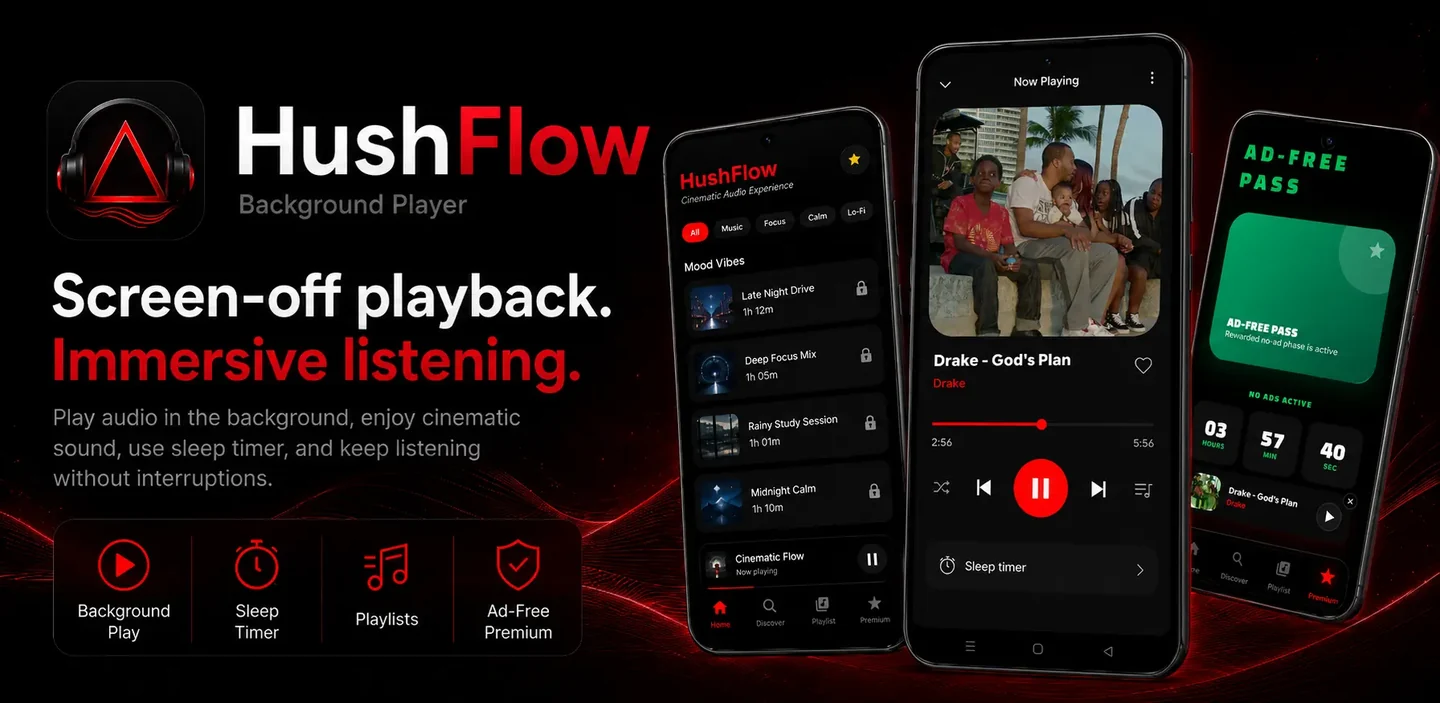
If you regularly want audio to continue after locking your screen, using a dedicated background-audio app can make the experience more reliable. HushFlow screen‑off music and podcast player is an Android app designed around convenient background listening.
HushFlow is built to continue supported audio playback while the screen is off, provided Android allows the app to remain active in the background. It includes features that make screen-off listening more enjoyable:
- Background playback — audio continues playing after you lock the screen or switch to another app.
- Notification and lock-screen controls — play, pause, skip, and adjust playback without unlocking your phone.
- Queue management — build and manage a listening queue so you do not need to keep unlocking the phone.
- Playlists — create custom playlists for uninterrupted listening sessions.
- Sleep timer — set a timer to stop playback automatically, perfect for bedtime listening.
- Audio discovery — browse categories such as Focus, Sleep, Mood, Pop, and Jazz.
- Audio Lab — customize your sound with a 10-band equalizer, bass boost, virtualizer, loudness enhancer, and audio presets.
- Offline downloads (Premium) — download supported audio for offline playback when you have permission to access that content.
- Google Sign-In — sign in with your Google account to sync your download history and account preferences where supported.
- Audio-language selection — choose between multiple audio tracks when a source provides more than one language.
HushFlow is not designed to bypass other apps, download protected media, remove advertisements from third-party platforms, or unlock paid content. It plays audio that you are legally permitted to access through supported sources and features.
Related Articles
- How to use a music sleep timer on Android — set a music sleep timer on Android
- HushFlow screen-off music and podcast player — HushFlow for Android
- More articles
Frequently asked questions
Can Android play music with the screen off?
Yes. Android can play music with the screen off when the app supports background playback and Android allows it to continue running.
Why does music stop when I lock my phone?
Common causes include battery optimization, background restrictions, missing notifications, or unsupported playback. Check the troubleshooting section above.
How do I allow background music on Samsung?
Go to Settings → Apps → select the audio app → Battery → select Unrestricted. Also check Settings → Battery → Background usage limits → Never sleeping apps. Menu names may vary.
How do I keep music playing on Xiaomi or Redmi?
Go to Settings → Apps → Manage apps → select the audio app → Battery saver → select No restrictions. Also enable Autostart where available.
Does screen-off playback save battery?
Turning off the display generally saves power, but streaming, Bluetooth, and audio processing still consume battery. Actual savings vary by device and usage.
Can podcasts continue playing with the phone locked?
Yes, when the podcast app supports background playback.
Why are lock-screen media controls missing?
This can be due to notification settings, lock-screen notification permissions, battery restrictions, or app compatibility. See the section above for fixes.
Can every Android app play audio with the screen off?
No. It depends on app support, source restrictions, and Android settings. Not all apps or media sources support screen-off playback.
Can any Android app play music when the phone is completely powered off?
No. When an Android phone is completely shut down, no app can run or play audio. Screen-off playback means the display is off but the phone is still powered on and unlocked or locked.
Final Thoughts
Screen-off audio is a practical Android feature that works well when the app, settings, and permissions are aligned. Start with a compatible app, check your battery and notification settings, and use the troubleshooting checklist to resolve common issues.
One action to try today: Open a supported audio app, start permitted audio, confirm that the media notification appears, lock the screen, and test playback for 30 seconds. If it works, you have successfully set up screen-off listening. If not, work through the checklist above — one step at a time.
Remember to respect the terms of the apps and services you use. Screen-off playback is a feature of Android, not a way to bypass content restrictions or platform limitations.