
To block distracting apps on Android, start with Digital Wellbeing: set an app timer or use Focus mode for the hours you want to protect. Turn off unnecessary notifications. If you repeatedly override ordinary limits, a dedicated blocker can add stronger boundaries after you review its permissions.
This is a common pattern. Distracting apps are designed to be easy to open and hard to close. But Android offers several ways to block, pause, or limit these apps — and you do not need to delete them completely.
This guide walks you through eight practical methods to block distracting apps on Android. It starts with the built-in tools that are already on your phone, then explains when a dedicated app blocker can provide an extra layer of support.
What counts as a distracting app?
An app becomes distracting when it repeatedly pulls your attention away from something you intended to do. The app itself is not always the problem — it depends on when and how you use it.
Common examples include:
- Social media feeds
- Short-video apps
- Games
- Shopping apps
- News apps
- Messaging groups
- Streaming apps
- Web browsers
The same app can be useful during one part of the day and distracting during another. A news app might be valuable in the morning but disruptive before bed. A messaging app may be essential for work but unhelpful during study sessions.
Quick self-check
Ask yourself these questions about any app you are considering blocking:
- Do I open this app without consciously deciding to?
- Does one quick check often turn into a long session?
- Does it interrupt my study, work, sleep or conversations?
- Do notifications make me reopen it repeatedly?
- Do I regularly feel regret about the time I spent there?
If you answered yes to several of these, the app may be a good candidate for one of the methods below.
Choose the right level of blocking
Not every app needs to be blocked in the same way. Some apps only need fewer notifications, while others may require stricter boundaries. The table below compares the main approaches.
| Method | What it changes | Best for | How strict it is |
|---|---|---|---|
| Turn off notifications | Stops selected alerts but does not block opening | Reducing interruptions | Low |
| Remove from home screen | Makes the app less visible but keeps it installed | Automatic opening habits | Low |
| App timer | Creates a daily usage limit | Reducing total time | Medium |
| Focus mode | Temporarily pauses selected apps | Study or work sessions | Medium |
| Dedicated app blocker | Adds stronger app-opening boundaries | Repeated bypassing or scheduled restrictions | Higher |
| Uninstall the app | Removes access until it is installed again | Apps that are not needed | Highest |
Ways to block or limit distracting apps on Android
-
Review which apps actually distract you
Before you block anything, know what you are dealing with. Open Settings → Digital Wellbeing & parental controls. The exact menu name may vary by device, but most Android phones have it.
Your Digital Wellbeing dashboard shows:
- Daily screen time
- App usage totals
- Number of times you have opened each app
- Notifications received
Choose no more than three apps to focus on initially. Trying to limit too many at once can be overwhelming.
App Daily usage Times opened Main trigger Boundary to try Example: Short-video app 1 hour 20 min 18 opens Boredom during study 45-minute timer -
Turn off unnecessary app notifications
Notifications are one of the main reasons people reopen apps. Disable the alerts that you do not genuinely need.
How: Go to Settings → Notifications → App notifications, select the app, and turn off the categories that are not useful.
Keep: Account‑security alerts, banking notifications, emergency information, important direct messages, and work or school alerts you truly need.
Remove: Promotional notifications, recommendations, trending‑content alerts, engagement reminders, and repeated marketing messages.
Turning notifications off reduces prompts, but it does not block the app itself — you can still open it manually.
-
Remove distracting apps from the home screen
Reducing visual cues can make a big difference. Move distracting apps away from your primary home screen, or place them inside a folder.
This does not block the app — it remains installed and available in your app drawer. But it adds a small pause between the impulse to open it and the actual action.
Example: Move social media apps to a folder on the second page of your home screen. Keep study apps, calendar, notes and communication tools visible on the first page.
If this feels overwhelming, start by moving just one app.
-
Set a realistic daily app timer
Android's Digital Wellbeing includes app timers that limit how long you can use a specific app each day.
How: Go to Settings → Digital Wellbeing & parental controls → App timers. Select an app and set a daily limit.
When you reach the limit, Android shows a reminder and pauses the app. Timers generally reset each day.
Example: If you currently spend 90 minutes on a social app, set the timer to 60 or 75 minutes — not zero. Unrealistic limits are easy to abandon. Start with a limit that feels achievable and adjust later.
-
Use Android Focus mode during important hours
Focus mode temporarily pauses selected apps and their notifications, making them unavailable for the duration of the session.
How: Go to Settings → Digital Wellbeing & parental controls → Focus mode. Select the apps you want to pause, then either turn Focus mode on manually or set a schedule.
You can take a temporary break from Focus mode if you genuinely need to open a paused app. This is helpful for emergencies but should not become a regular habit.
Suggested schedules: During a lecture, a 45‑minute study session, coding time, a family meal, or after a certain hour in the evening.
Availability and exact naming may vary by Android version and device manufacturer.
Focus mode can temporarily pause selected apps during study or work periods. -
Create a phone boundary around one activity
Physical distance works alongside software limits. Choose one activity where you will keep your phone out of reach.
Examples:
- Keep your phone away from your study desk.
- Charge it outside the bedroom at night.
- Place it face-down during meals.
- Leave it in a bag during a lecture.
- Keep it across the room during focused work.
Start with just one location. This creates a clear boundary without trying to change everything at once.

Moving a phone out of immediate reach adds a physical boundary to digital controls. -
Use a dedicated app blocker for stronger boundaries
If you regularly override app timers or pause Focus mode without thinking, a dedicated app blocker may be useful. These apps add a stronger pause before you can open selected apps, making it harder to ignore your limits.
When it helps:
- You repeatedly remove app timers or ignore Focus mode.
- You need scheduled restrictions that are not too easy to bypass.
- You want a pause that gives you time to reconsider before opening an app.
- You want replacement activities or calming visuals instead of immediately returning to the app.
What to check before using one:
- Read the app's privacy policy.
- Understand which permissions it requests and why.
- Check whether the app stores data locally or remotely.
- Confirm you can still use important apps (e.g., calendar, authentication, banking).
- Ensure emergency access remains available.
A good blocker works with you, not against you. It is not about punishing yourself — it is about creating space to choose intentionally.
Recommended blocking setups for study, work and bedtime
Study setup
- Turn off promotional notifications for social media and entertainment apps.
- Pause social media, games and short‑video apps.
- Allow calls from important contacts (family, study group).
- Use a 25‑, 45‑ or 60‑minute Focus mode window.
- Keep the phone out of arm’s reach.
Work setup
- Pause entertainment and news apps.
- Keep email or messaging available only when required.
- Use scheduled Focus mode for your most productive hours.
- Check messages during planned breaks rather than continuously.
- Avoid blocking authentication, calendar or work‑security apps.
Bedtime setup
- Stop checking news and social media at a chosen time (e.g., 9:00 PM).
- Enable Bedtime mode where available.
- Use Do Not Disturb with important exceptions.
- Charge the phone away from your pillow.
- Keep emergency calls accessible.
What to do when you bypass your limits
Bypassing a timer, a Focus mode session, or a blocker is not a failure. It is information. It tells you something about the environment, the trigger, or the boundary itself.
When it happens, try this reset process:
- Close the distracting app.
- Identify what triggered you to open it.
- Restore the timer or blocking session.
- Adjust the boundary — make it slightly easier or more specific.
- Choose a two‑minute replacement action.
Replacement ideas:
- Stand up and stretch
- Drink a glass of water
- Write down your next task
- Read one page of a book
- Take five slow breaths
- Walk briefly around the room
- Put the phone in another room for five minutes
“Pause, identify, reset and continue.”
Each time you notice a bypass, you are strengthening your awareness. That awareness is the foundation of lasting change.
How Noctra supports stronger app boundaries
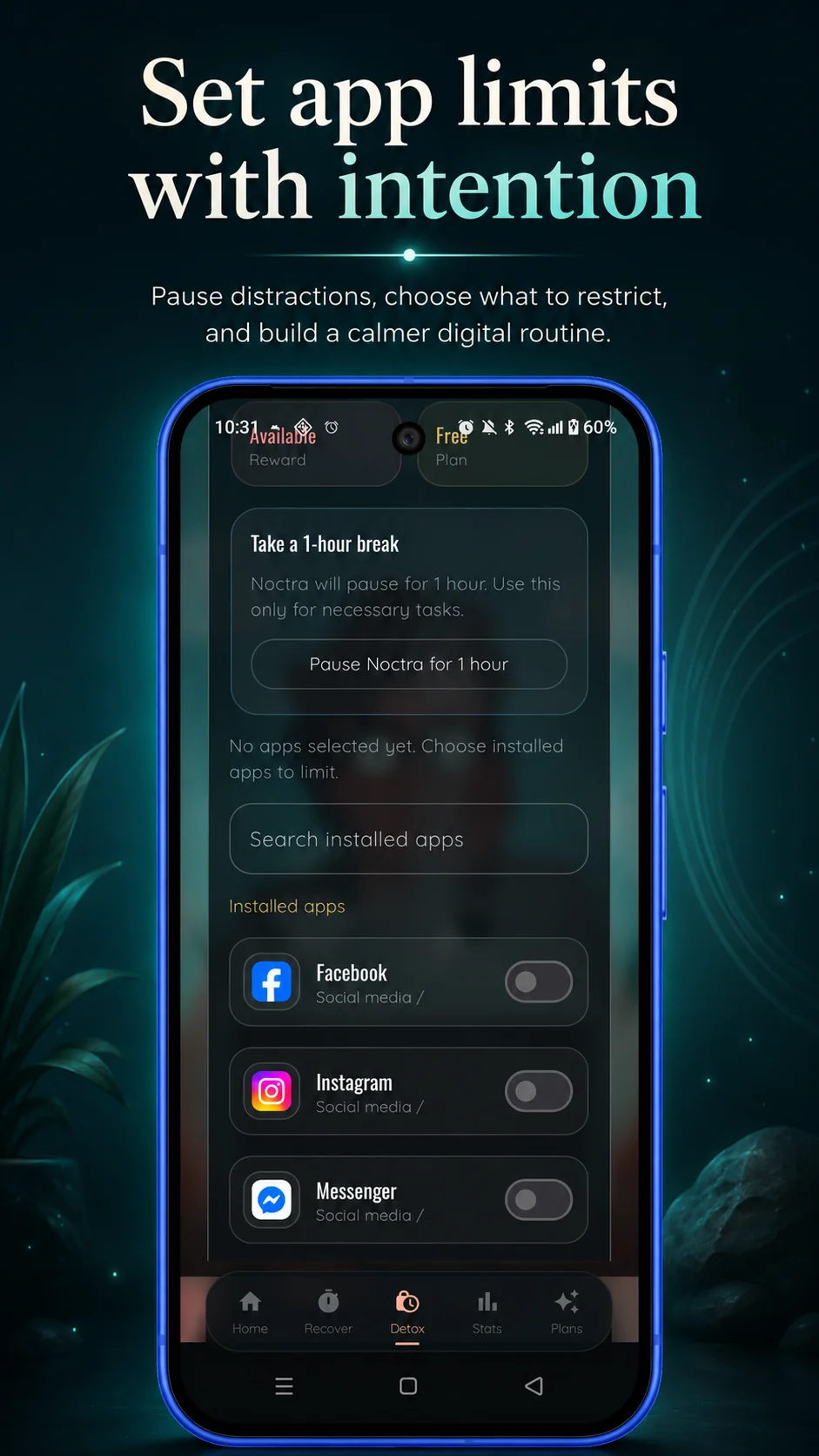
If you have tried Android's built‑in controls but still find yourself opening distracting apps without thinking, Noctra can add an extra layer of support.
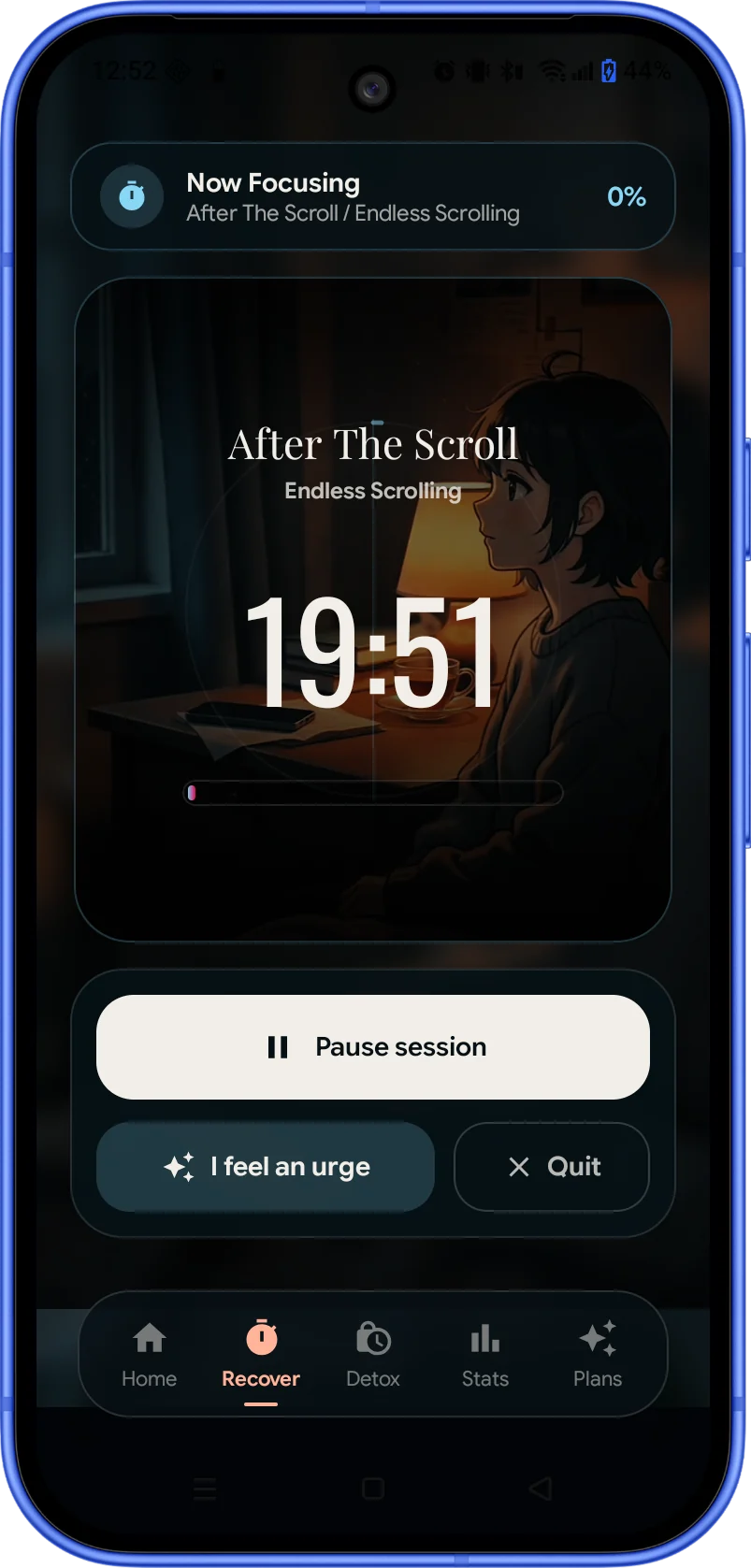
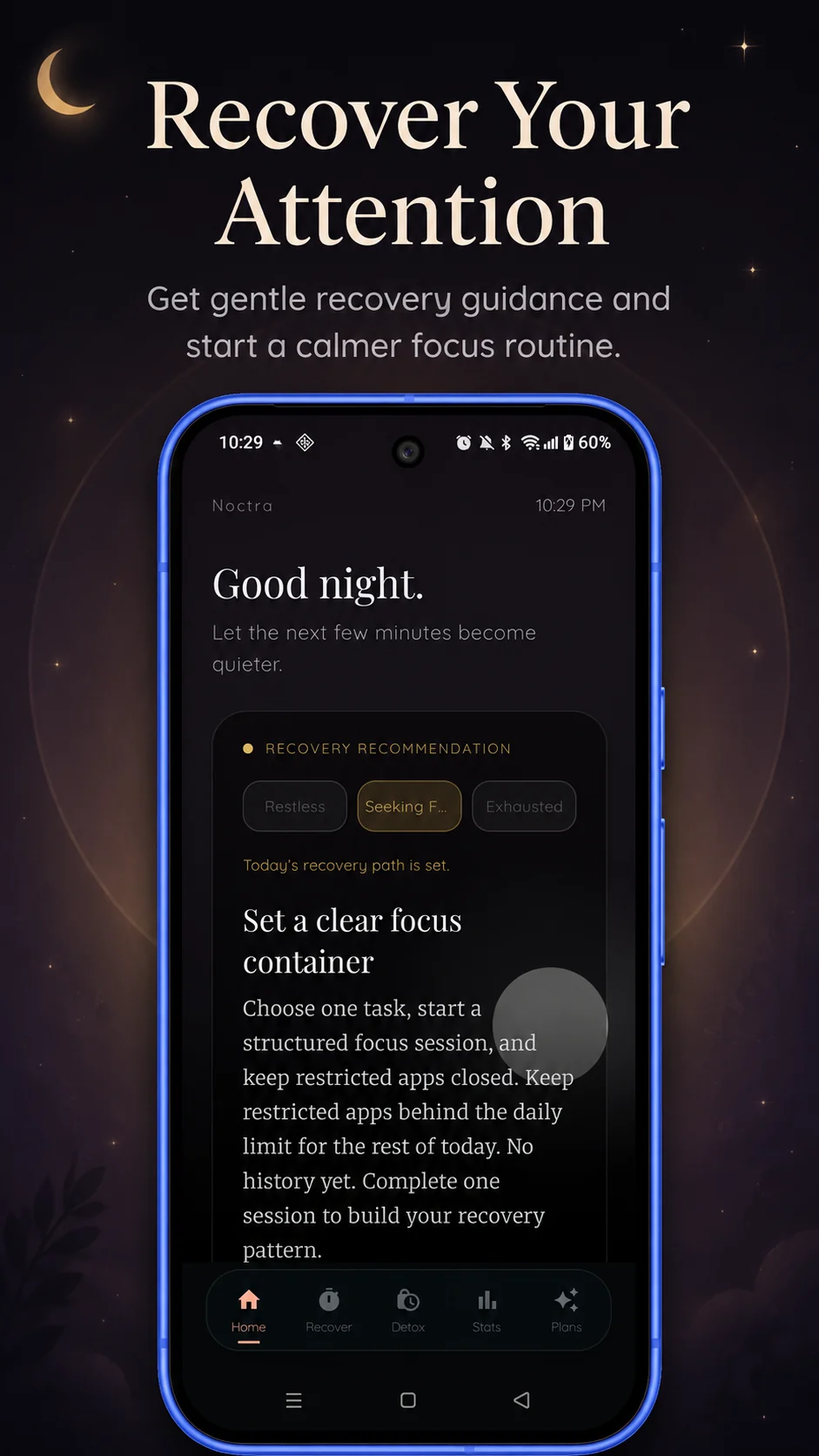
Noctra is an Android digital‑wellbeing app designed to help you create stronger boundaries around distracting apps. It works alongside Android's existing controls by adding intentional pauses, focus sessions, and low‑stimulation alternatives.
With Noctra, you can:
- Set up focus sessions with custom durations
- Use breathing resets and Boredom Box Mode
- Access calming atmospheres as replacement activities
- Review detox progress and focus stats
- Use Ambient Minimal Mode for low‑stimulation phone use
- Set up device controls with usage access and Accessibility support
Noctra is not a medical tool and does not treat addiction, anxiety, or other conditions. It is a practical tool for people who want more control over their phone habits.
Frequently asked questions
Can I block an app on Android without uninstalling it?
Yes. Android offers several ways to limit an app without removing it: app timers, Focus mode, notification controls, and moving the app away from the home screen. A dedicated app blocker can also pause or limit access without uninstalling.
How do I temporarily block distracting apps on Android?
Use Android's Focus mode. Go to Settings → Digital Wellbeing → Focus mode, select the apps you want to pause, and turn it on manually or set a schedule. This temporarily blocks selected apps and their notifications.
Does Android Focus mode block notifications?
Yes, Focus mode pauses both the apps and their notifications on supported Android devices. When Focus mode is active, you will not receive alerts from the apps you have selected.
What happens when an Android app timer expires?
The app is paused and shows a screen reminding you that you have reached your daily limit. You can usually choose to override the timer or close the app. Timers reset daily.
Can I block social media only while studying?
Yes. You can schedule Focus mode to turn on during your study hours. You can also set up a dedicated app blocker with a schedule that only restricts social media apps at specific times.
Is a dedicated app blocker better than Android Focus mode?
It depends on your needs. Focus mode is free and built into most Android devices. A dedicated app blocker can provide stricter boundaries, more schedule options, and additional features such as replacement activities and progress tracking.
Final thoughts
Blocking distractions works best in layers:
- Reduce prompts by turning off unnecessary notifications.
- Add limits with app timers and Focus mode.
- Schedule focus periods that align with your most important work.
- Create physical distance by keeping your phone out of reach.
- Use stricter blocking only when softer methods are too easy to ignore.
You do not need to do all of these at once. Opening Digital Wellbeing, choosing one distracting app, and setting one realistic boundary today is a meaningful start.
Small, consistent changes add up over time. And if you get distracted again, that is not a setback — it is information you can use to adjust your approach.