
To reduce doomscrolling on Android, identify the app you open most automatically, silence its non-essential notifications, and protect one daily period with an app timer or Focus mode. Choose an activity to do instead of scrolling. Stronger blocking can support that routine when reminders are easy to ignore.
This is the pattern many people call doomscrolling. It is common, it is understandable, and it is not your fault that you got pulled in.
This guide explains how to reduce doomscrolling on Android using a combination of built-in Android features, simple environment changes, and realistic replacement habits. The goal is not to stop using your phone entirely, but to make your time on it more intentional.
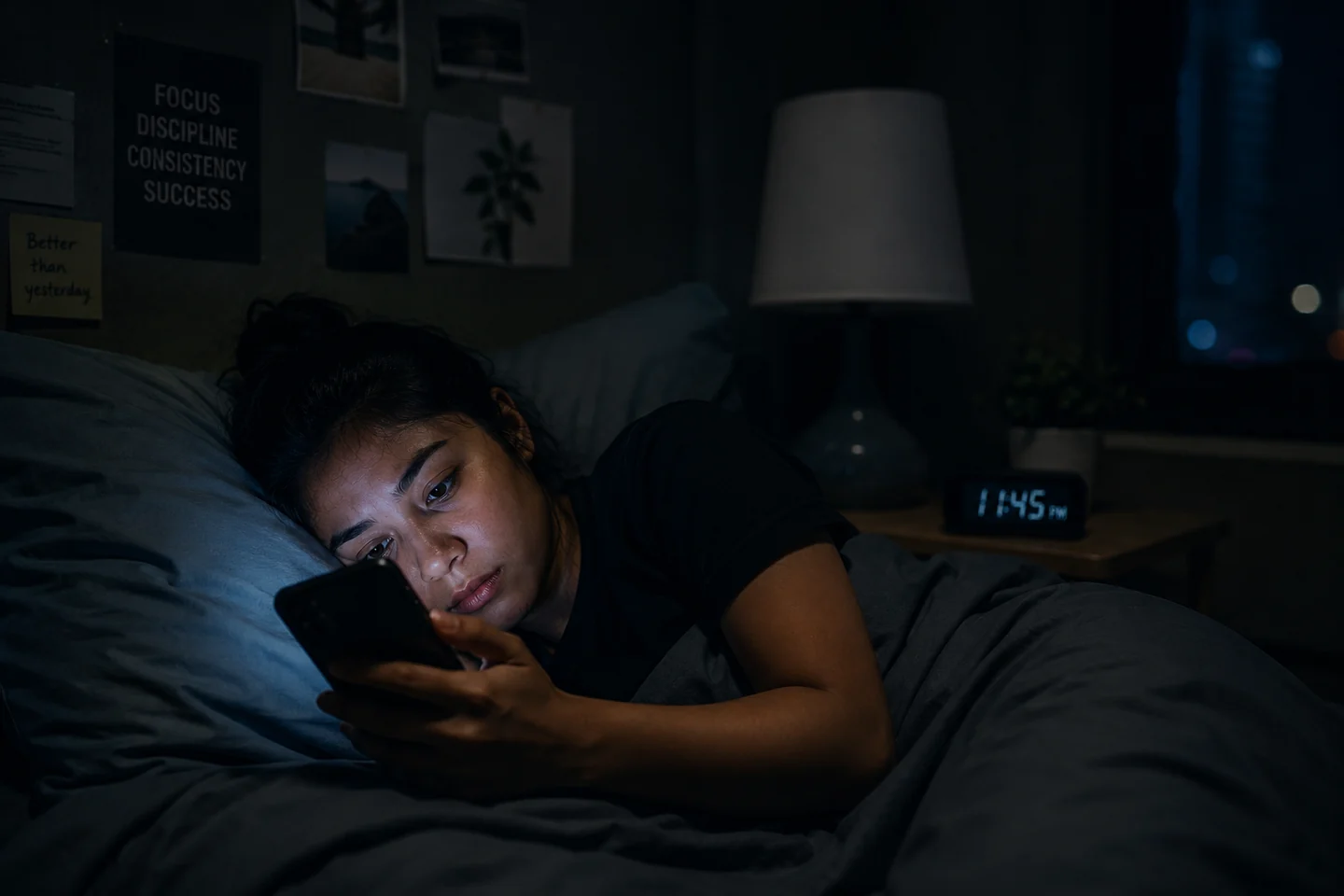
What is doomscrolling?
Doomscrolling means repeatedly consuming negative, upsetting, or emotionally intense online content for longer than you intended. It usually begins with a simple check of news headlines, social media feeds, or notifications, but it can quietly stretch into a much longer session.
It is different from ordinary entertainment scrolling. You might watch funny videos or browse hobbies and feel fine afterward. Doomscrolling often leaves you feeling drained, worried, or more stressed than before — even though you kept scrolling.
It can happen on any app that presents a continuous feed, including social media sites and news apps.
A quick self-check
If you are not sure whether a scrolling session counts as doomscrolling, ask yourself:
- Did I open this app on purpose?
- Am I actually learning something useful?
- Have I continued scrolling longer than I planned?
- Do I feel calmer, better informed, or more distressed now?
- Is this preventing me from sleeping, studying, working, or talking to someone?
If you answered yes to most of these, you are probably in a doomscrolling pattern. The good news is that it can be interrupted with a few clear steps.
Why is doomscrolling difficult to stop?
There are several reasons why doomscrolling can feel so hard to resist:
- Feeds never end. Most apps provide infinite scrolling. There is no natural stopping point, so it is easy to keep going.
- Notifications create prompts. Each notification reminds you to check the app, even if you closed it moments before.
- Negative or uncertain stories encourage more checking. When something feels uncertain or concerning, your brain may want to keep looking for updates — even when no new information is available.
- It becomes automatic. Opening an app can become a response to boredom, stress, avoidance or even habit without thinking.
- Your phone is always within reach. The behaviour is easy to start because the phone is usually right there.
You do not need to understand every reason behind the habit to change it. You just need one or two strategies that work for you.
Start with a three-minute phone-use audit
Before you try to change anything, take three minutes to understand what your current phone use actually looks like.
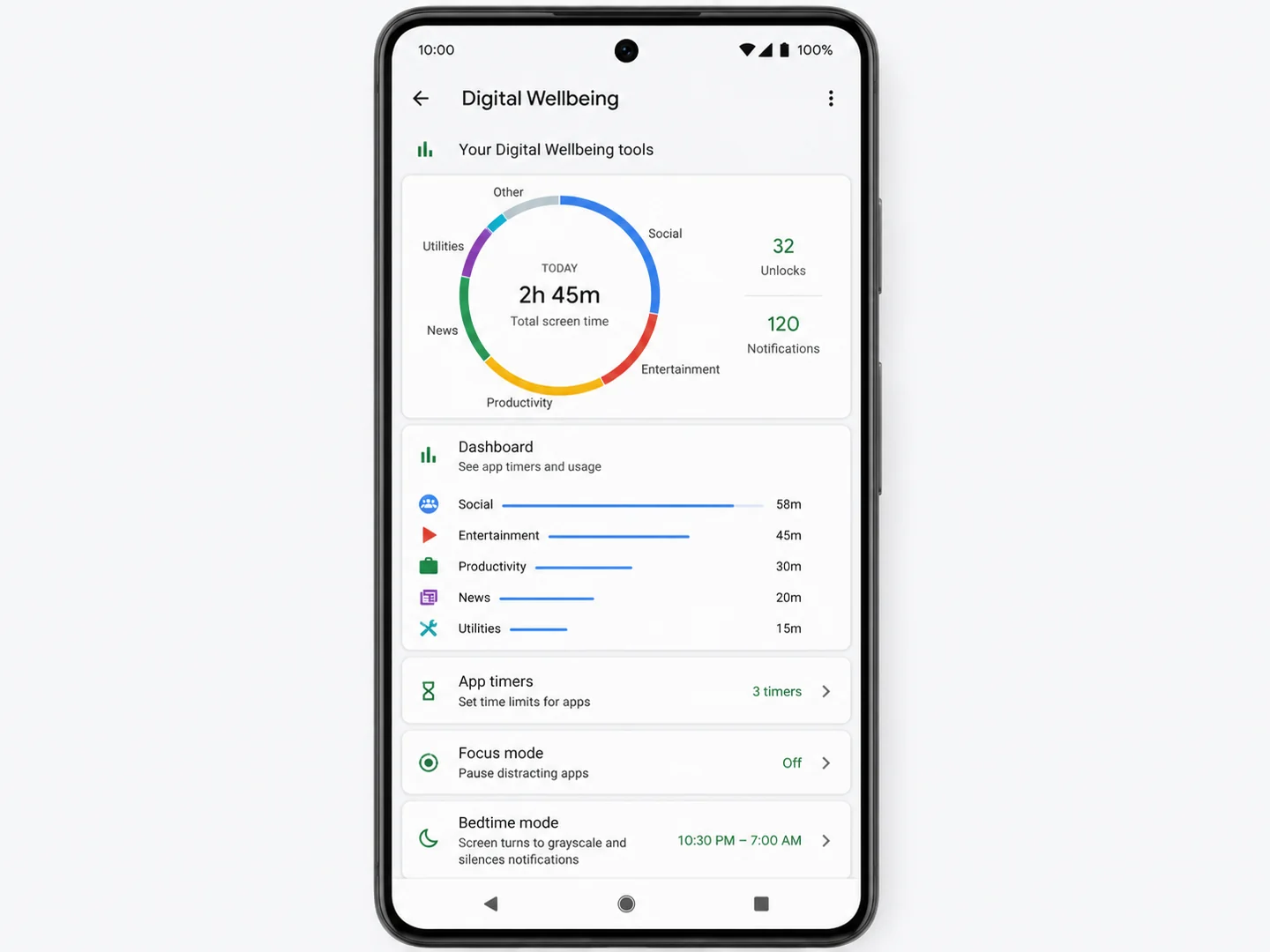
Step 1: Open Digital Wellbeing
Go to Settings → Digital Wellbeing & parental controls. The exact menu name may vary slightly depending on your Android version or device manufacturer.
This screen shows which apps you have used most during the day, how many times you have unlocked your phone, and how many notifications you have received.
Step 2: Identify your top three apps
Write down the three apps that you use most often.
Step 3: Track the details
For each app, note:
- The app name
- How many minutes you typically spend on it each day
- What usually triggers you to open it (e.g., a notification, boredom, a break)
- What time of day you tend to use it most
- How you feel after using it
| App | Daily time | Common trigger | Usual time | How I feel afterward |
|---|---|---|---|---|
| Example: News app | 55 minutes | Checking one headline | Before sleep | More alert and worried |
Nine practical ways to reduce doomscrolling on Android
-
Check your Digital Wellbeing dashboard
Reviewing your actual usage data is often more useful than guessing. Open Digital Wellbeing and look at your daily totals for each app. The numbers may surprise you, and they provide a clear starting point for change.
-
Set realistic app timers
In Digital Wellbeing → App timers, you can set daily limits for specific apps. Android will show a reminder when you are close to your limit.
If you currently spend 90 minutes on a particular app, do not reduce it to zero immediately. Try 60 or 75 minutes first, then adjust later.
-
Schedule Android Focus mode
Focus mode lets you select distracting apps and block them during specific periods, such as study time, work hours, meals, or quiet evenings. You can set a schedule so it turns on automatically.
Availability and exact naming may vary by Android device and version.
-
Remove unnecessary notifications
Promotional alerts, recommendation notifications, and engagement reminders are designed to bring you back into the app. Disable them for apps that you want to use less often.
Keep: Bank alerts, security messages, and work notifications. Remove: "Trending now" and "You might like" alerts.
-
Make distracting apps less convenient to open
Creating a small barrier can give you a moment to reconsider. Try:
- Removing the app from your home screen
- Placing it inside a folder
- Logging out when you are finished using it
- Turning off automatic sign-in
- Avoid placing it beside frequently used tools
These steps will not stop you permanently, but they create a helpful pause.
-
Create phone-free locations
Designate certain places where you will not use your phone. Examples include:
- Bed
- Dining table
- Study desk
- Bathroom
- During prayer or reflection
- During conversations with family or friends
Start with one location rather than trying to create phone-free zones everywhere at once.

Moving the phone out of immediate reach can create a useful pause before reopening an app. -
Choose a replacement before the urge appears
Removing a habit can leave boredom or discomfort behind. Plan a simple replacement activity ahead of time.
Good replacements are quick and accessible:
- Walk outside for two minutes
- Stretch
- Drink a glass of water
- Read two pages of a book
- Write down your next task
- Listen to calming audio
- Talk to someone nearby
- Complete one short household task
-
Build a calmer bedtime routine
Late-night doomscrolling can interfere with sleep and make it harder to relax. Try these small changes:
- Set a bedtime or Do Not Disturb schedule
- Charge your phone away from your pillow
- Stop checking news at a chosen time
- Use an alarm clock instead of your phone when possible
- Keep a book or notebook nearby
These are supportive habits, not treatments for sleep conditions.
-
Use stricter blocking when ordinary limits are easy to ignore
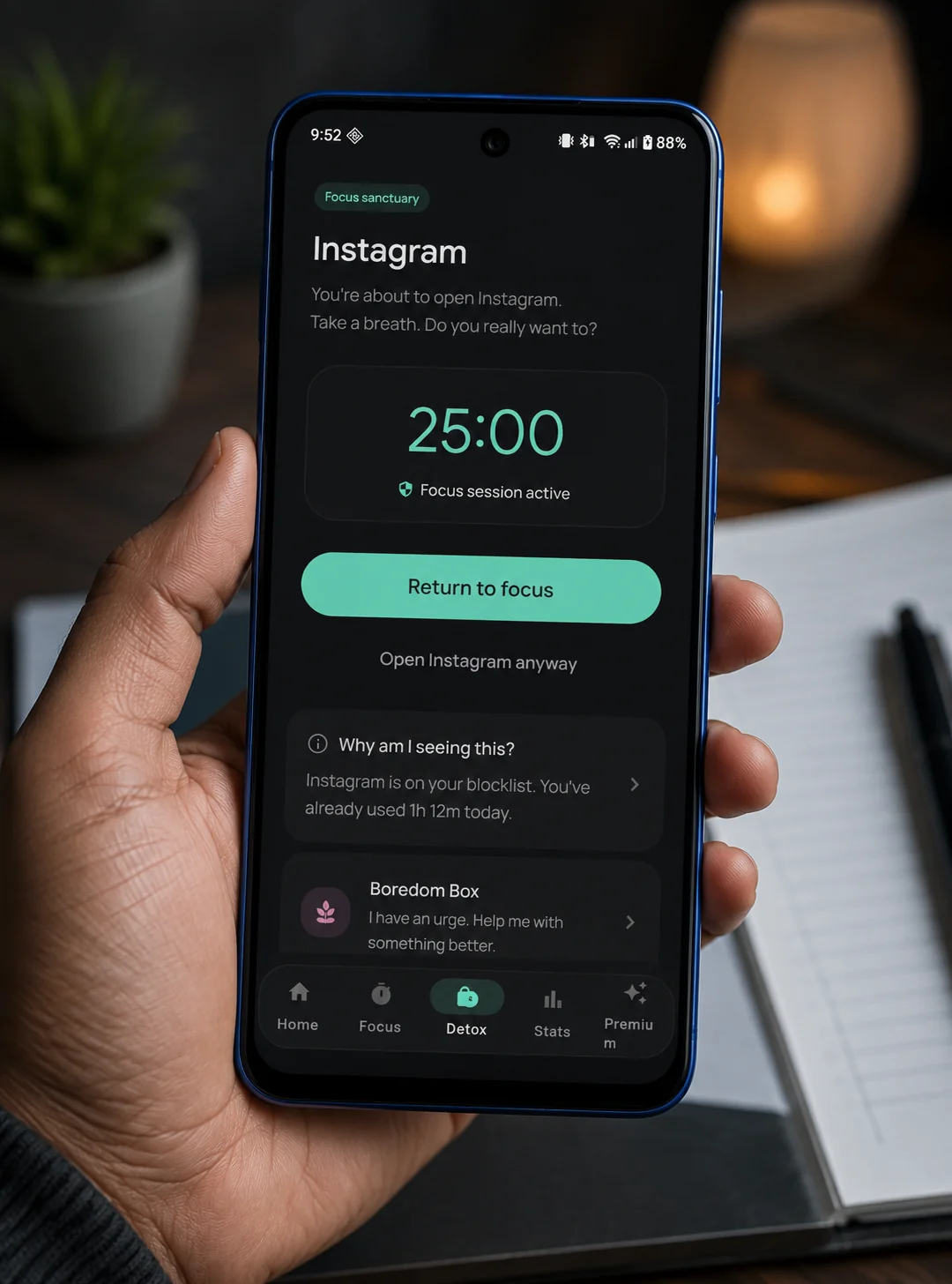
If you frequently override app timers or keep opening apps despite Focus mode, a dedicated app blocker may help. Blocking tools add an intentional pause before you can access selected apps, making it easier to notice what you are about to do.
App blockers work best when you have a clear reason and a replacement activity ready — not as the only strategy.
A simple seven-day digital detox plan
This plan helps you ease into new habits without feeling overwhelmed. The goal is not a perfect week — it is learning which situations trigger unwanted scrolling and which boundaries are realistic for you.
| Day | Action |
|---|---|
| Day 1 | Review Digital Wellbeing and select one problem app. |
| Day 2 | Disable unnecessary notifications from that app. |
| Day 3 | Set a realistic timer or limit for that app. |
| Day 4 | Create one phone-free location. |
| Day 5 | Schedule one Focus mode period. |
| Day 6 | Choose two replacement activities. |
| Day 7 | Review what worked and adjust your limits. |
What to do when you start scrolling again
Returning to the habit does not erase your progress. Every time you notice it, you are strengthening your awareness — and that awareness is the foundation of change.
When you catch yourself doomscrolling, try this four-step reset:
- Stop — without criticizing yourself.
- Close — close the app.
- Identify — what triggered the session?
- Replace — choose one small replacement action.
“Notice, close, replace and continue.”
How Noctra can support healthier phone boundaries
If you have tried Android's built-in tools but still find yourself opening distracting apps without thinking, Noctra can add an extra layer of support.
Noctra is an Android digital wellbeing app designed to help reduce doomscrolling and create boundaries around distracting apps. It works alongside Android's existing controls by adding intentional pauses before you access selected apps.
With Noctra, you can:
- Select the apps you find most distracting
- Set usage limits that are harder to ignore
- Use focus sessions to stay on track
- Review your progress over time
- Practice boredom‑training activities
- Use calming atmosphere rooms as a replacement activity
Noctra is not a medical tool and does not treat addiction, anxiety, or other conditions. It is a practical tool for people who want more control over their phone habits.
Frequently asked questions
What is the difference between scrolling and doomscrolling?
Scrolling is a neutral action — reading, browsing, or watching content. Doomscrolling is specifically the repeated consumption of negative, upsetting, or emotionally intense content for longer than intended, often leaving the person feeling worse afterward.
How can I stop doomscrolling at night?
Try charging your phone away from your bed, setting a Do Not Disturb schedule, and using an alarm clock instead of your phone. You can also set a timer that stops you from opening news or social media apps after a certain hour.
Does Android have a built-in app timer?
Yes. Android's Digital Wellbeing feature includes app timers that let you set daily limits for specific apps. When you reach your limit, Android shows a reminder and temporarily pauses the app.
Should I delete every social media app?
Not necessarily. Deleting every app is a valid option for some people, but it is not the only option. Many people prefer to keep the apps they value and set boundaries around when and how they use them.
Can an app blocker help reduce doomscrolling?
Yes. An app blocker adds an intentional pause before you can access selected apps, making it easier to notice what you are about to do. It works best when combined with a clear reason and a replacement activity.
Final thoughts
Doomscrolling is a common habit, and it is not a personal failure. It is a behaviour that has been shaped by the design of endless feeds, continuous notifications, and the natural human desire to stay informed.
The goal is not to stop using your phone completely or to feel guilty every time you open an app. The goal is to move from automatic scrolling to intentional use — using your phone when it serves you, and putting it down when it does not.
Today, you can open Digital Wellbeing, identify one app that pulls you into doomscrolling, and set one small boundary. That is enough to start.
Sources and further reading
- Android Digital Wellbeing Help — Google Support
- Android Modes and Do Not Disturb Help — Google Support
- Android Bedtime Schedule Help — Google Support
- Peer-reviewed research on doomscrolling — ScienceDirect
Research on doomscrolling has found associations with emotional distress, but this does not prove that doomscrolling alone causes those outcomes.